Getting Started with Sequence
Sequence is a text-based rough-cut tool for spoken video on Mac. It transcribes your media on-device, lets you shape the edit from the words, handles repetitive cleanup, and prepares the result for a finished export or further work in Final Cut Pro and DaVinci Resolve.
The workflow is non-destructive. Your decisions are stored in the Sequence project while the source media remains untouched.
1. Download and Start a Trial
Sequence requires macOS Sequoia 15 or later on an Apple silicon Mac. Download Sequence, move it to Applications, open the app, and sign in to start the seven-day free trial. No card is required.
2. Import Your Media
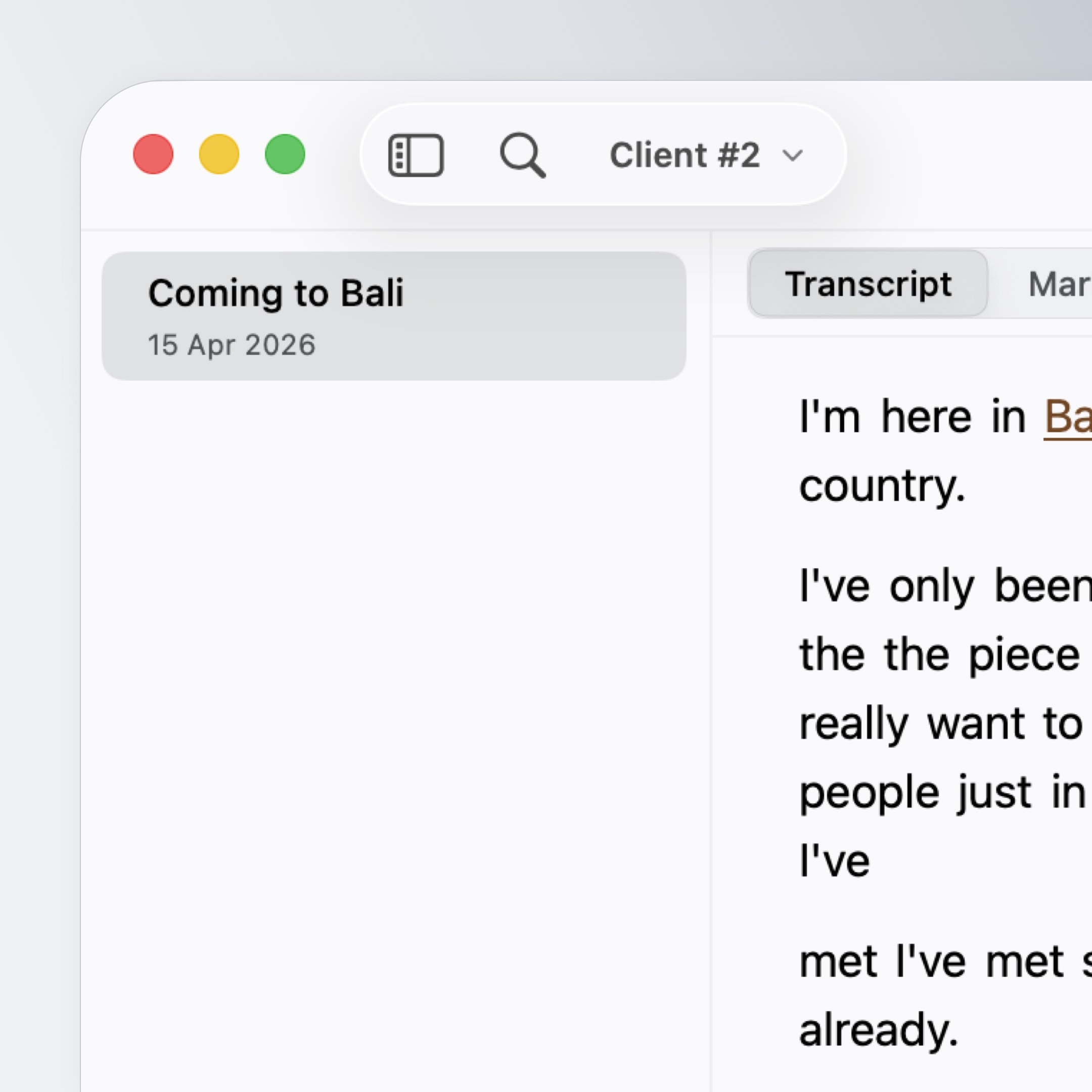
Bring in video or audio from your Mac, an external drive, or network storage. If a format is not directly compatible, Sequence can remux or convert a working copy without overwriting the original.
3. Transcribe On-Device
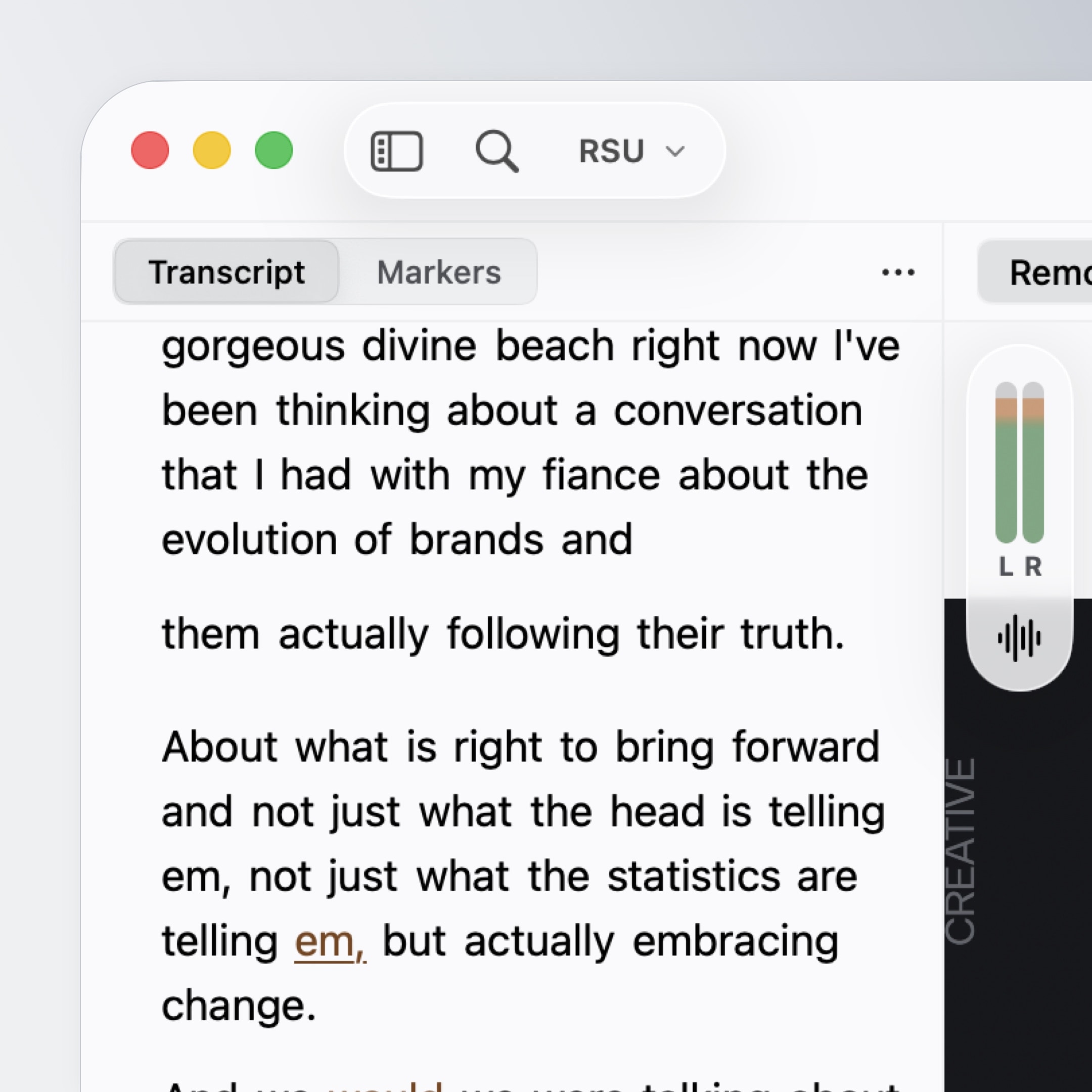
The first time you transcribe, Sequence asks you to download its Core ML speech-recognition model. After that, transcription runs locally on your Mac; your footage is not uploaded to a cloud transcription service.
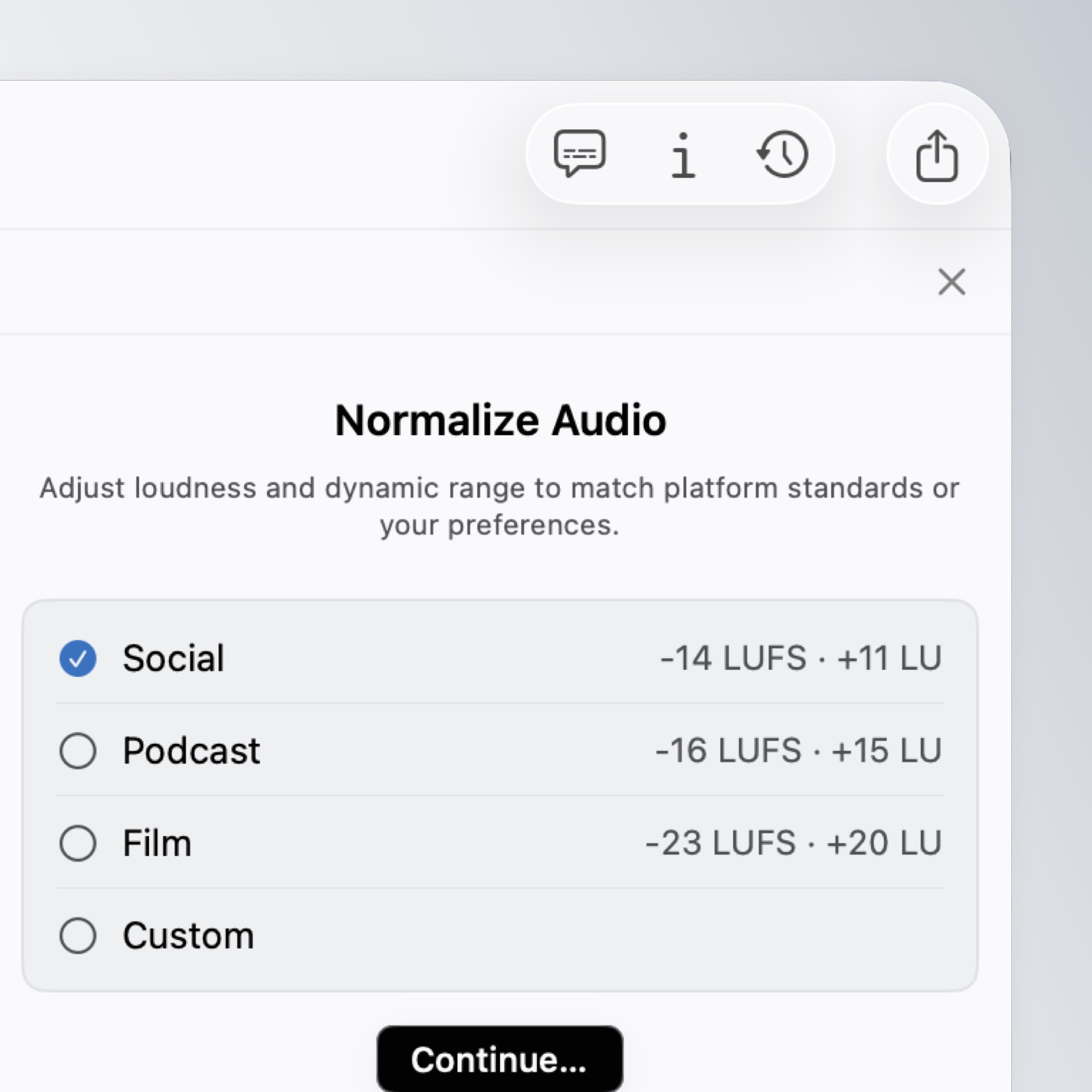
4. Prepare the Audio
Check the integrated loudness, compare the original with a normalised preview, and choose a preset or custom target for the destination. Sequence uses BS.1770-4 loudness measurement and keeps the source file untouched.
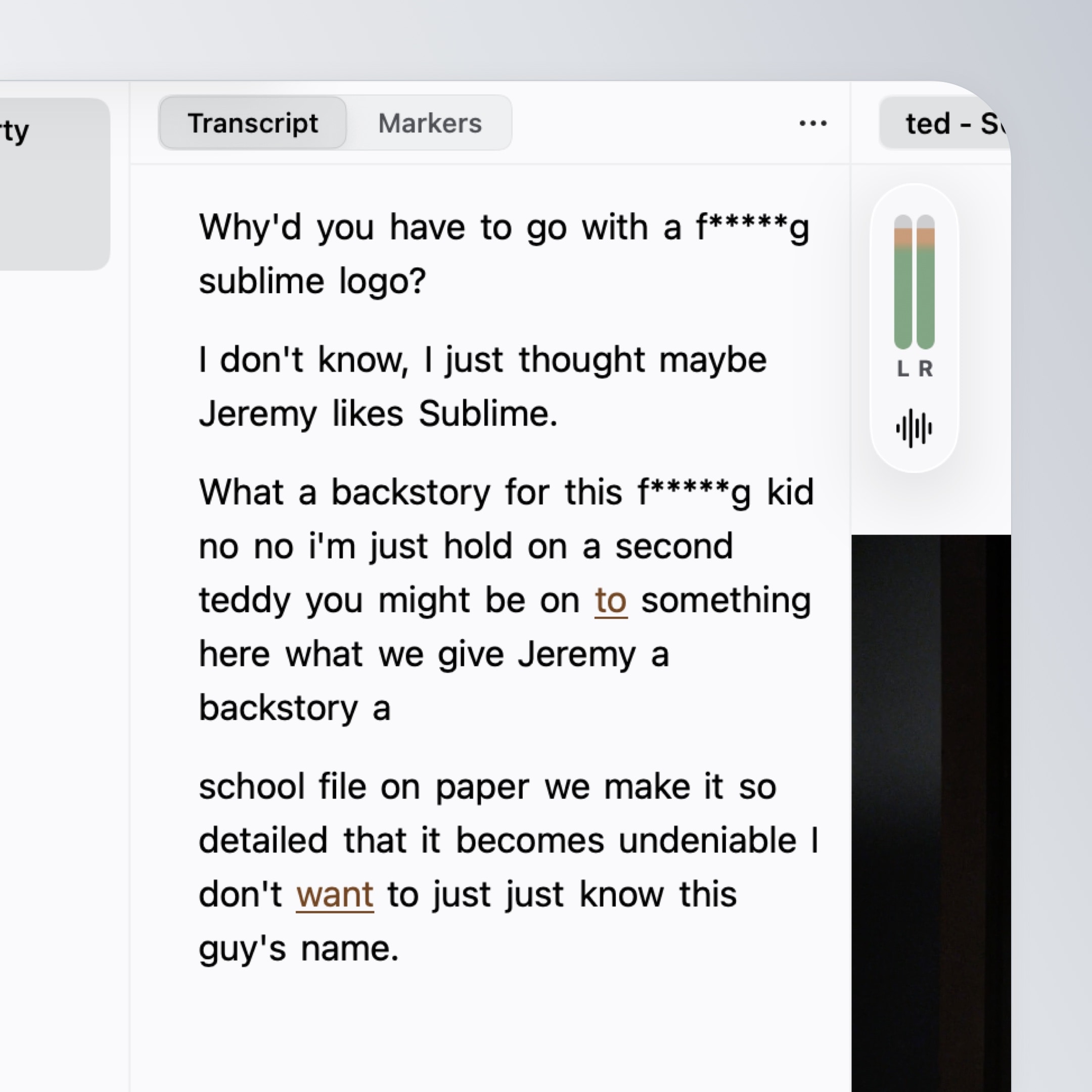
5. Shape and Clean the Rough Cut
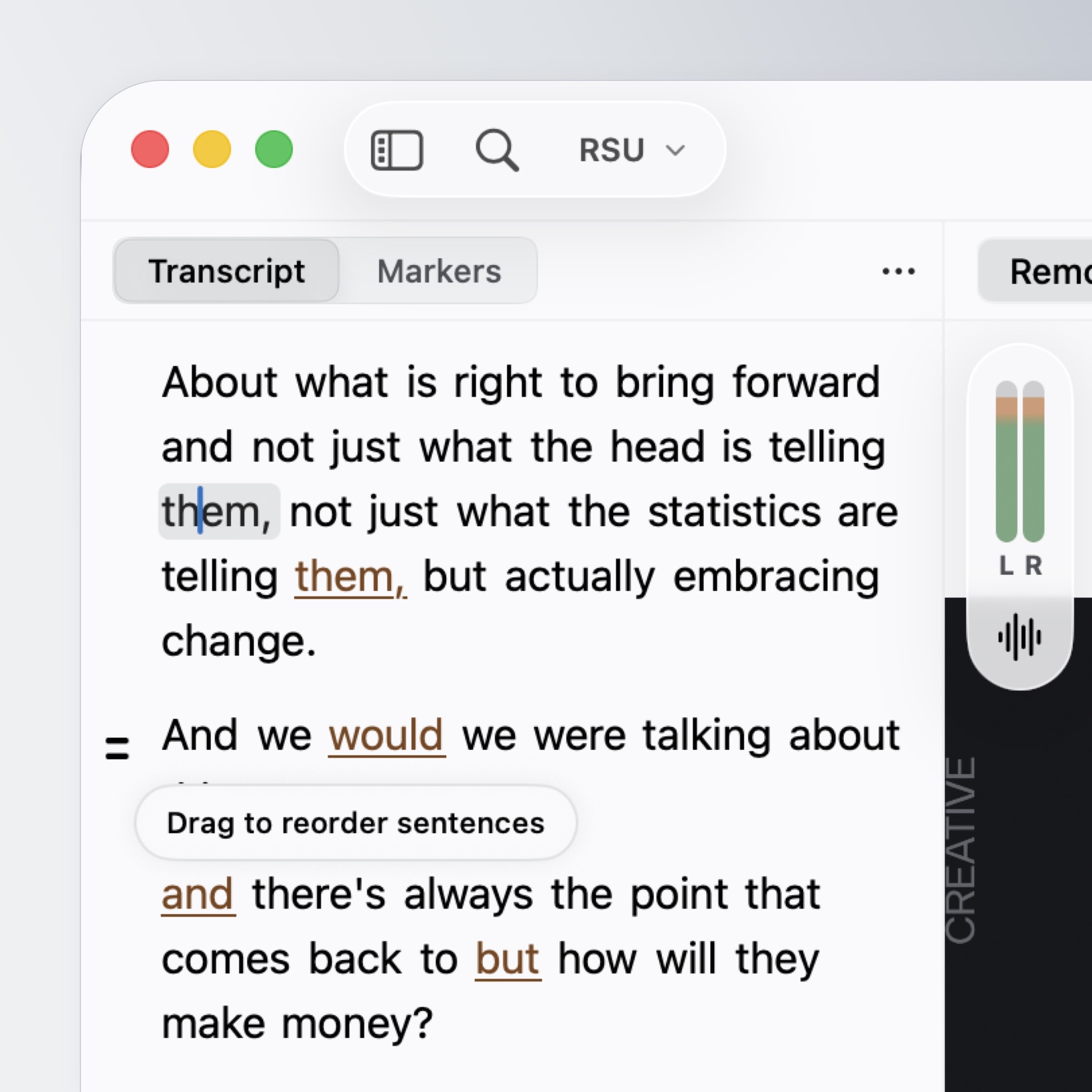
Read the transcript, disable words or sections you do not need, and reorder sentences where the story requires it. Transcript corrections change the text without cutting the media.
Use filler-word, silence, and profanity controls for the repetitive first pass, then review the result for meaning and pace. Profanity can be skipped, silenced, beeped, or redacted in captions according to the brief.
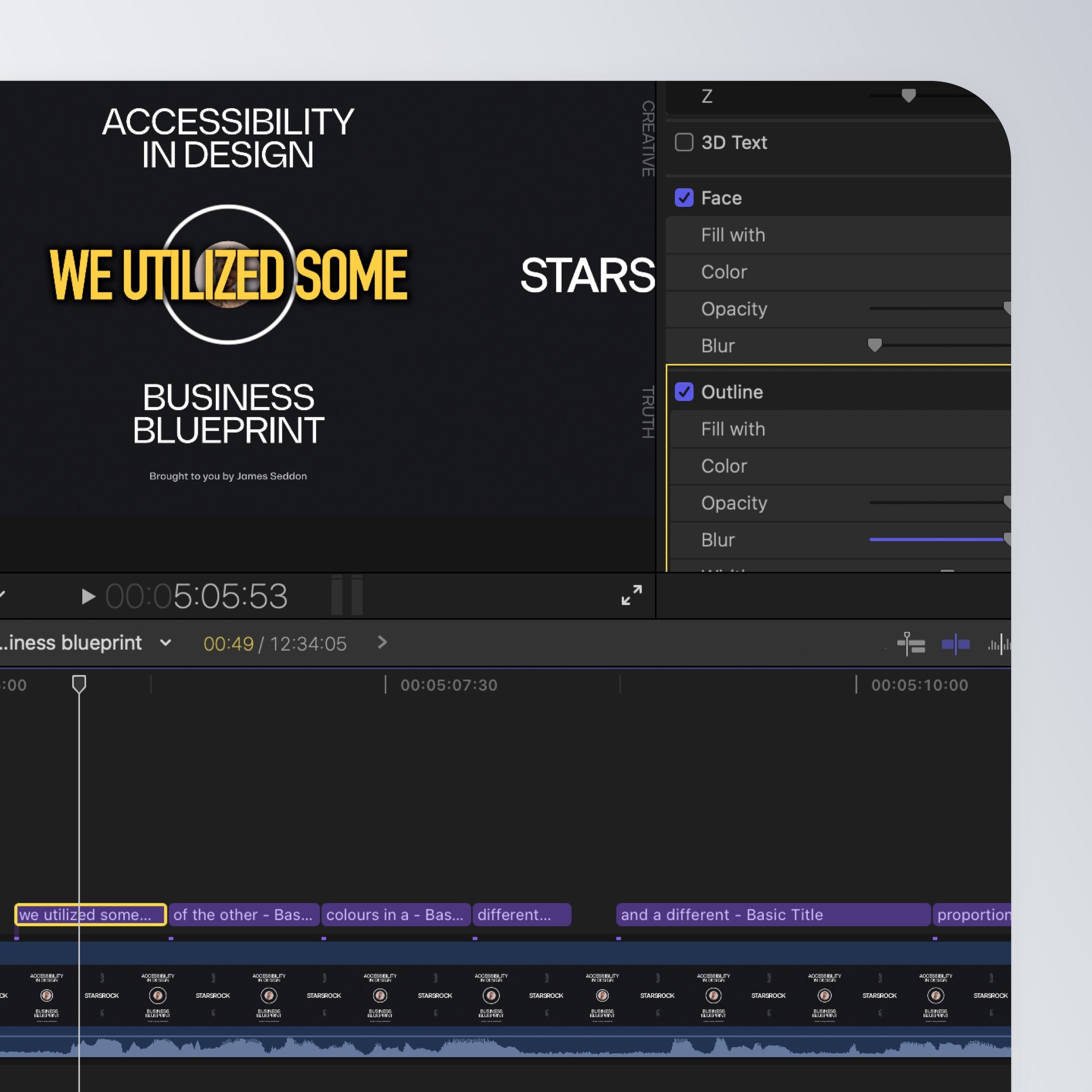
6. Choose the Right Export
For a straightforward cut, export finished video or audio directly from Sequence. You can also create caption, subtitle, and transcript sidecars.
When the edit needs graphics, colour, effects, or a detailed mix, continue in Final Cut Pro or DaVinci Resolve. Sequence carries over the active variant’s cuts, titles, markers, external or prepared audio, and framing choices.
7. Organise Projects and Versions
-
Catalogs group projects by client, series, year, or any structure that suits your work.
-
Variants create independent versions from the same source without duplicating the media.
-
Global Search finds spoken words and project details across your Sequence library.
-
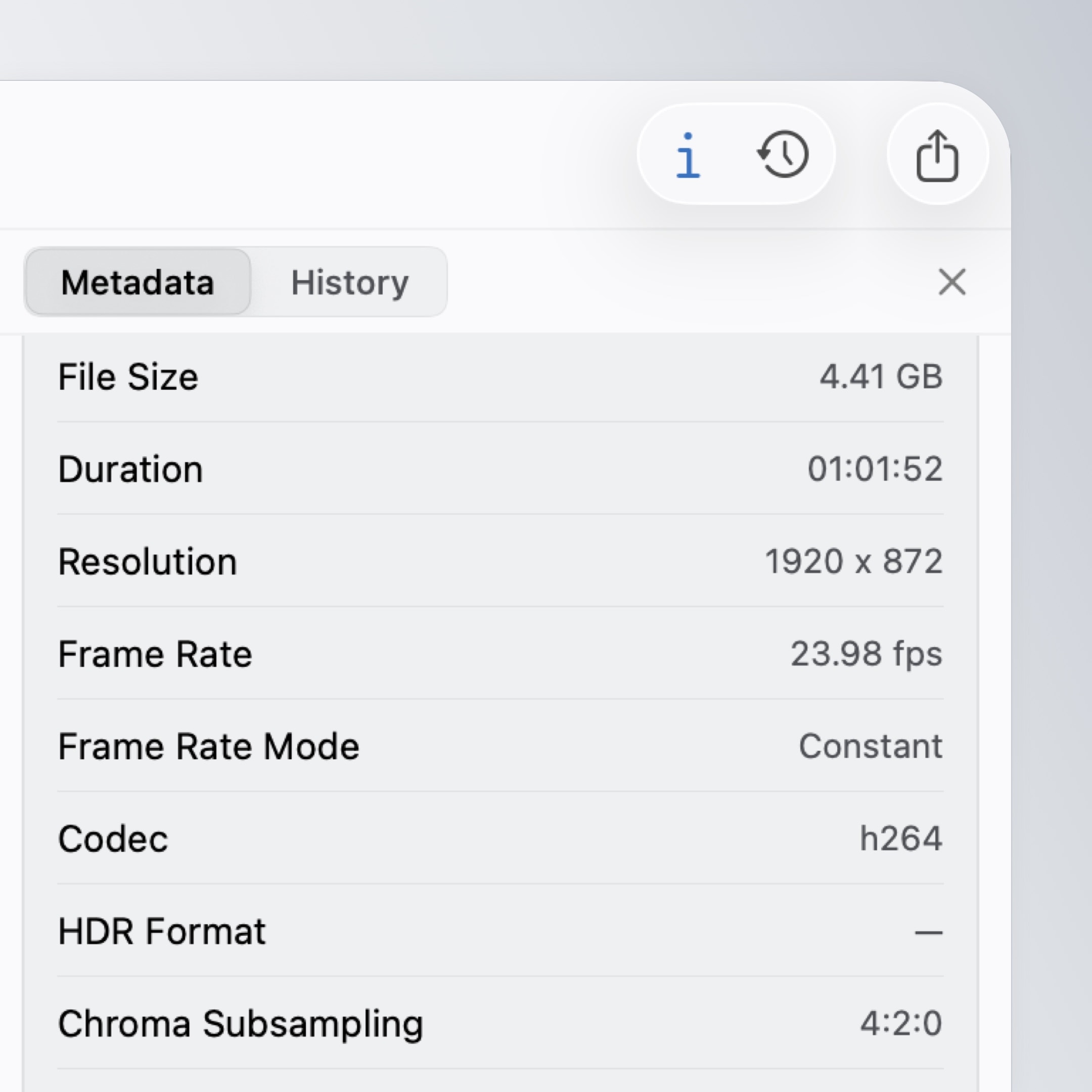
Metadata shows technical details such as codec, resolution, colour space, and Dolby Vision information.
8. Privacy and Diagnostics
Sequence asks whether you want to share optional analytics and error reports. You can change that choice later in the app or your online account. The Privacy Policy explains what is collected and how it is handled.
Getting Help
- Read the detailed documentation.
- Check common questions in the FAQ.
- Report bugs from the app so useful version and device context is included.
- Use the Support page when you need a person.
- Report security issues privately through the process on the Security Acknowledgements page.

James Seddon, Founder