Using an AI Assistant with Sequence MCP
An AI assistant can be useful in an edit without becoming the editor.
Sequence MCP keeps the project on your Mac. The assistant connects through sq and its local stdio server; with Sequence open and signed in, the app bridges CLI requests to the encrypted project database. You do not need to provide a remote server URL or database credentials.
Start with the connection, not the edit
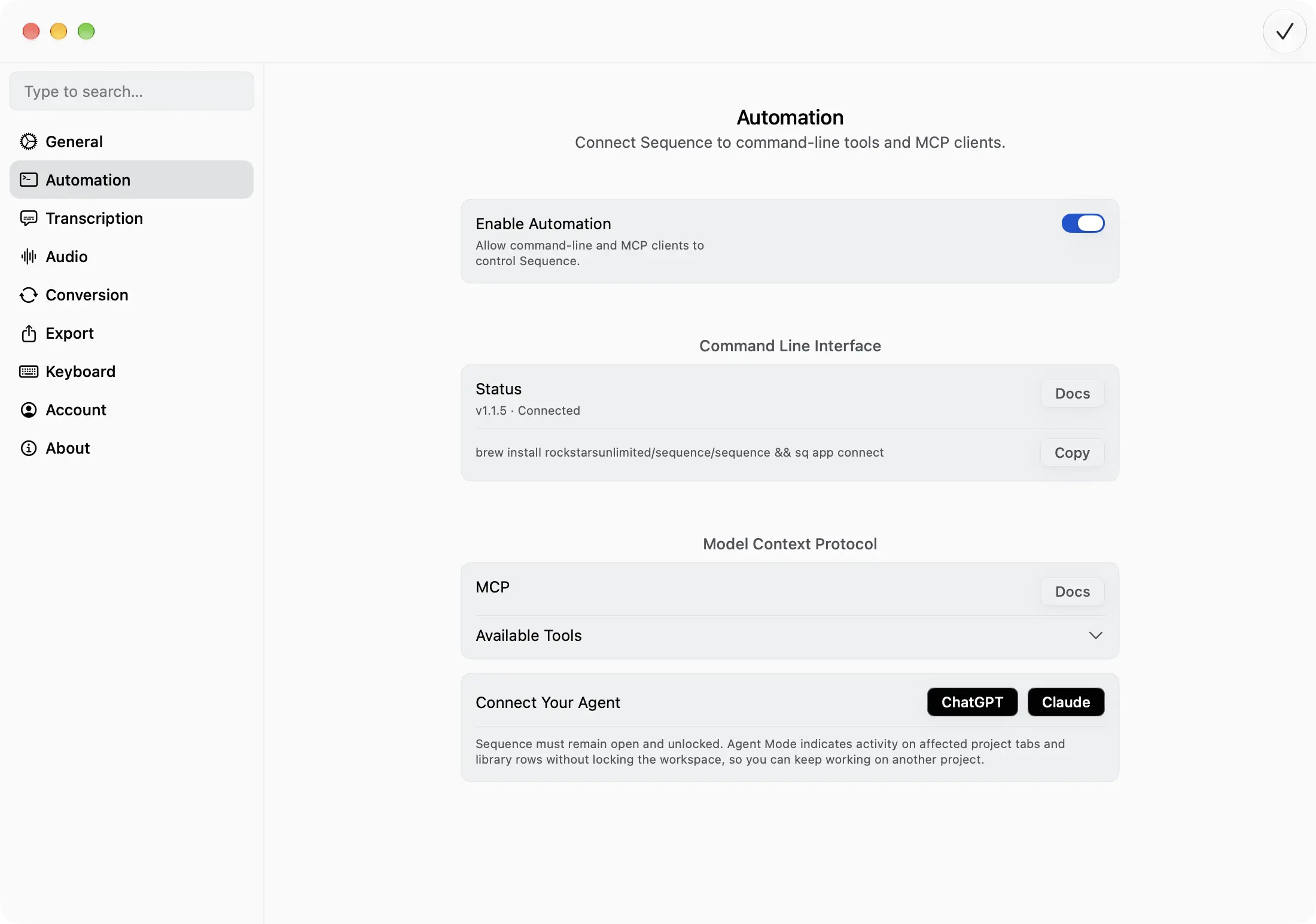
Before asking an assistant to touch a project, install the current Sequence CLI and connect it to the app:
brew install rockstarsunlimited/sequence/sequence && sq app connect
With Sequence open, signed in, activated, and unlocked at the main workspace, enable Settings → Automation → Enable Automation. The sq app connect command bridges the CLI to Sequence; wait for its status to show Connected.
The assistant then launches the local MCP server with:
sq mcp serve
The Settings screen also offers ChatGPT and Claude buttons to add Sequence MCP to those desktop assistants. Use those quick-add buttons when available. Other hosts use their own configuration formats: Cursor uses a local stdio entry, OpenCode uses a local command array, and Codex supports codex mcp add sequence -- /path/to/sq mcp serve. Where configuring manually, use the absolute path returned by command -v sq rather than assuming every Mac uses the same Homebrew location.
For the full setup steps, see the Sequence MCP documentation.
Use sq directly from an agent
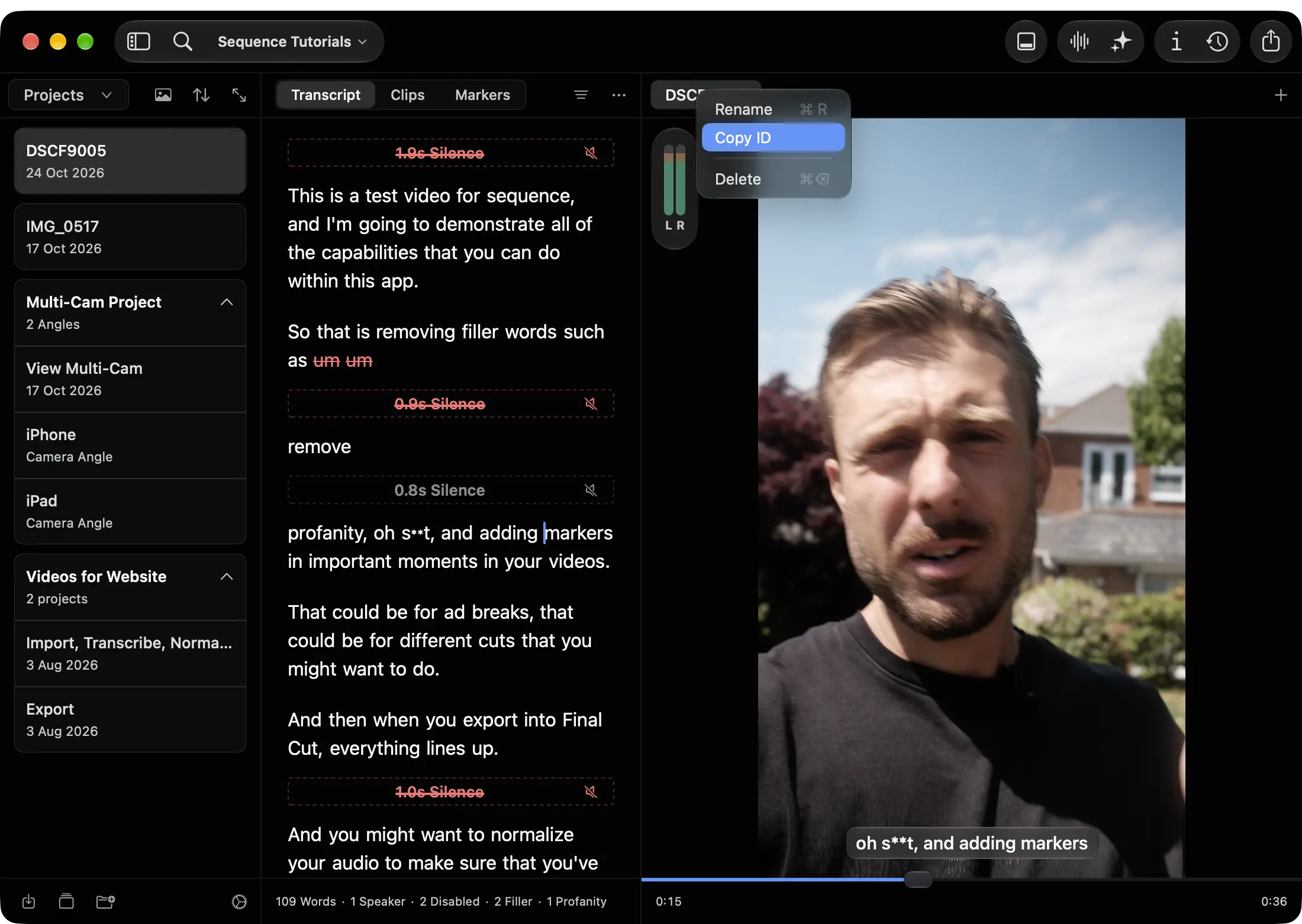
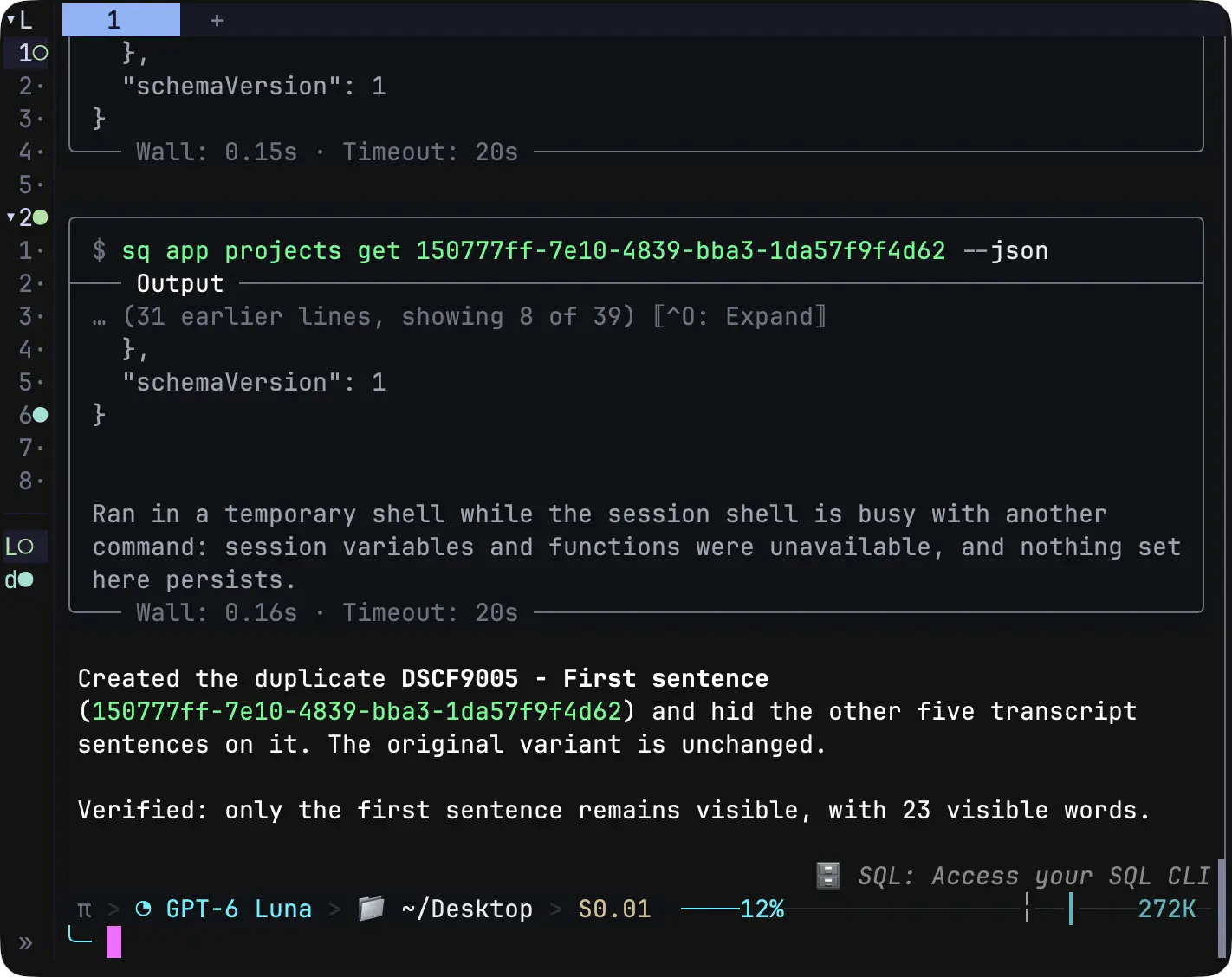
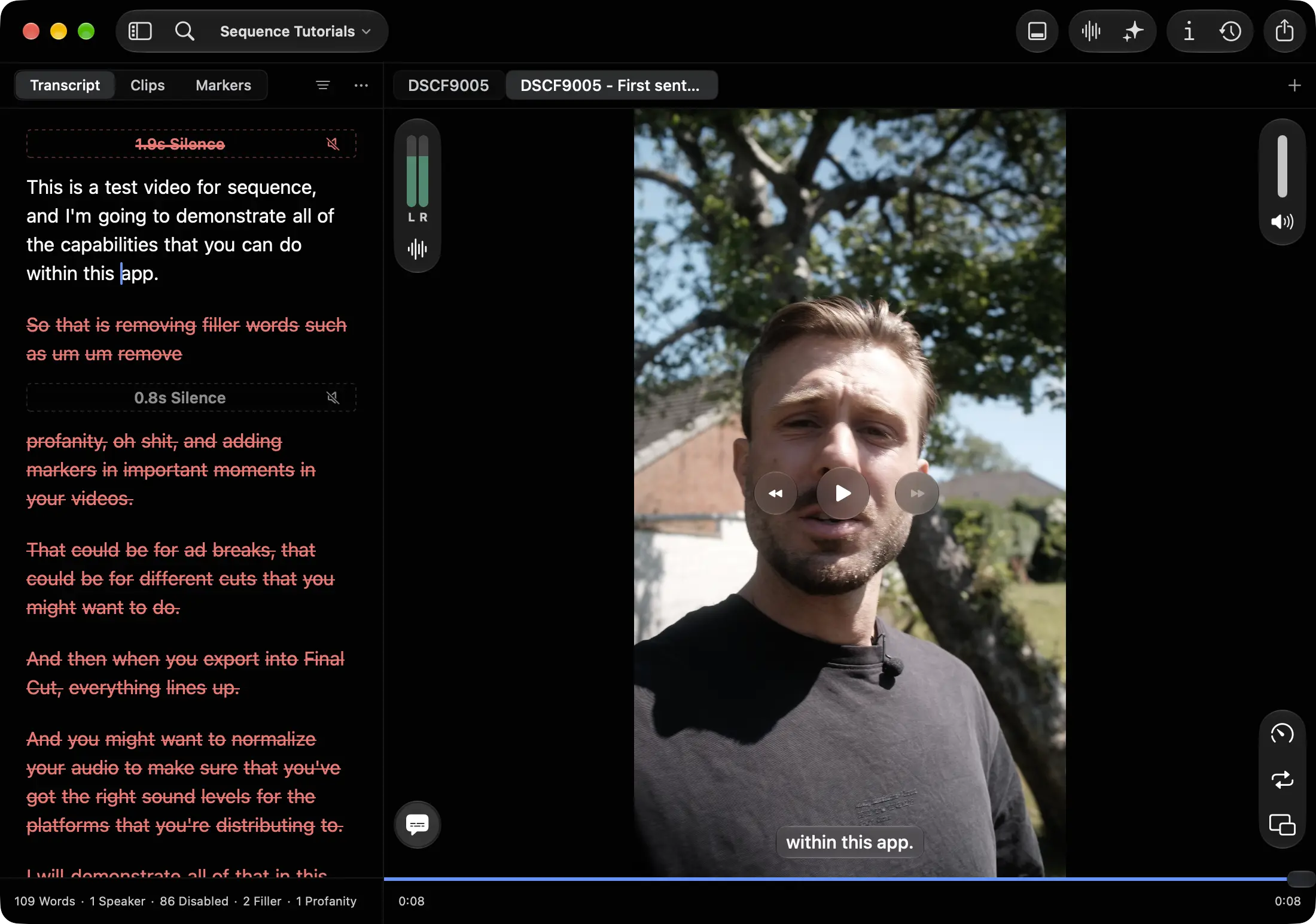
MCP is not the only way to work with an agent. A terminal-based agent can run sq commands directly, inspect structured JSON output, and report what it changed. To target the right material, copy the ID from the relevant tab, project, or catalog and give it to the agent. For example, ask it to create a separate variant that keeps only the first sentence, then verify the result in Sequence. The original remains unchanged.
Ask for inspection before asking for changes
The safest first request is an inspection request.
Ask the assistant to find a project, list the available variants, or search for a phrase in the transcript. This gives you a chance to check that it has found the right project and that it understands the material before any edit is applied.
For a long interview, that might mean asking for every passage that mentions a particular product, person, or question. For a podcast, it might mean locating the answer you want to turn into a shorter clip.
The assistant can search and organize the available material. You remain responsible for listening to the surrounding delivery and deciding whether the moment belongs in the cut.
Preview the rough cut
A useful next step is a preview rather than a saved change. Sequence can generate an automatic clip preview from a source variant without beginning an edit session.
This is a good place to be specific about the outcome:
- Find a two-minute answer to a particular question.
- Look for the clearest explanation of a technical idea.
- Prepare a short excerpt that stands on its own.
- Suggest a selection from the transcript, but do not save it yet.
The better the brief, the more useful the result. “Make this better” leaves too much editorial intent unstated. “Find the shortest complete answer, keep the context before the answer, and show me the proposed cut” gives you something concrete to review.
Make changes in a separate version
When you are ready to test the idea, ask the assistant to begin an edit session and create a new variant rather than changing the source in place.
Sequence’s edit workflow is built around that separation. An edit session returns a target variant, and the default behaviour is to work from a copy of the active material. You can then disable words or sentences, reorder sentence groups, create clips, or prepare an export while the original version remains available for comparison.
That makes the assistant more useful for exploration. You can ask for a social cut without turning it into the only version of the interview. You can compare a reordered explanation with the original sequence. You can reject the result without losing the source arrangement that you started with.
Review the words and the joins
Transcript-led editing is not a licence to stop listening.
Correct names, specialist terms, and important phrases before they become captions or the basis of a cut. Then listen to the joins. A sentence can be factually correct but still sound abrupt when two sections meet. A pause can be meaningful even when an automated cleanup tool identifies it as removable.
Sequence keeps transcript decisions separate from the source media. You can edit transcript text, disable material, and restore it without replacing the original recording. That gives you room to test an assistant’s suggestion while retaining the context needed to make a better decision.
Keep the handoff explicit
When the rough cut is ready, decide what should happen next. You might continue refining it in Sequence, export finished media, or hand the project to Final Cut Pro or DaVinci Resolve for finishing work.
An assistant can help prepare that next step, but it should not make the handoff invisible. Check the selected variant, the transcript decisions, the media, and the destination before starting an export or delivery job.
The useful pattern is simple:
- Connect the local tool.
- Inspect the project and transcript.
- Preview a possible cut.
- Create a separate edit session for changes.
- Listen through the result.
- Export or hand off only after review.
AI assistance is most valuable when it removes repetitive searching and arranging while leaving the important editorial decisions visible. Sequence MCP is a way to put that assistance close to the project, without asking you to give up control of the edit.
James Seddon, Founder