How to Edit Podcasts Faster on Mac
Are Podcasts Getting Harder to Edit?
The recording itself may not be harder to edit, but the number of expected deliverables keeps growing. One conversation can become a full episode, topic clips, social cuts, a clean version, captions, transcripts, and an editable master.
That makes the first pass expensive. Listening back, finding a sentence, making a cut, checking the result, and repeating the process can take hours before the creative edit begins.
Because podcasts are built from speech, it makes sense to begin with the words.
Start with the Words, Not the Timeline
Sequence transcribes the recording on your Mac and turns it into a searchable, editable reference. Nothing needs to be uploaded for transcription, so you can work offline and keep client media on the machine.
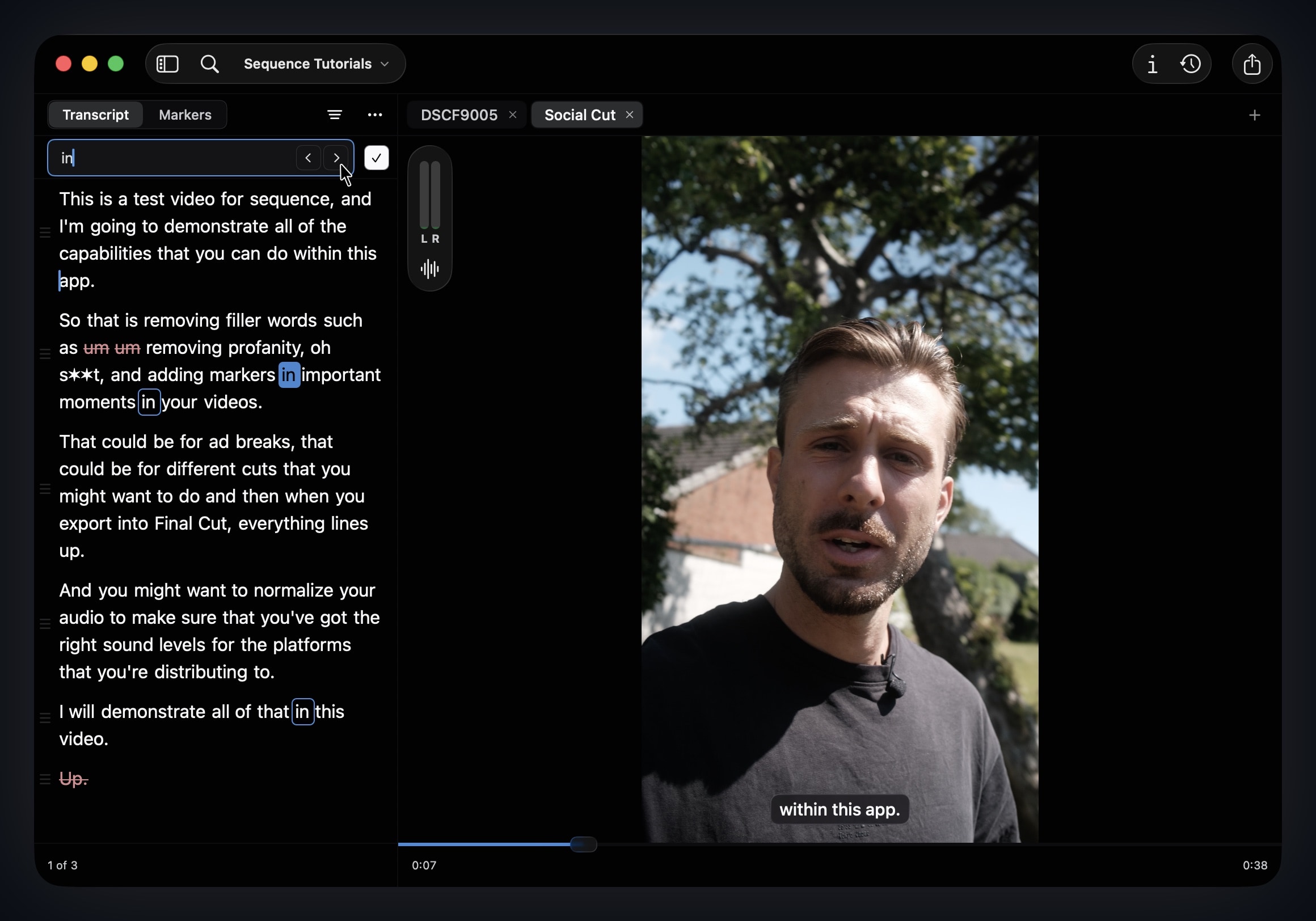
Scanning a transcript is often quicker than replaying a long recording. Global Search (⌘F) finds spoken words across your Sequence library, while Find within Transcript (⌘⌥F) highlights matches in the current project. Jump to a result to check the original performance in context.
Shape the Episode with Text
Select words or sentences and disable them to remove those ranges from the active edit. The text remains visible with a strike-through, so you retain context and can reverse the decision later.
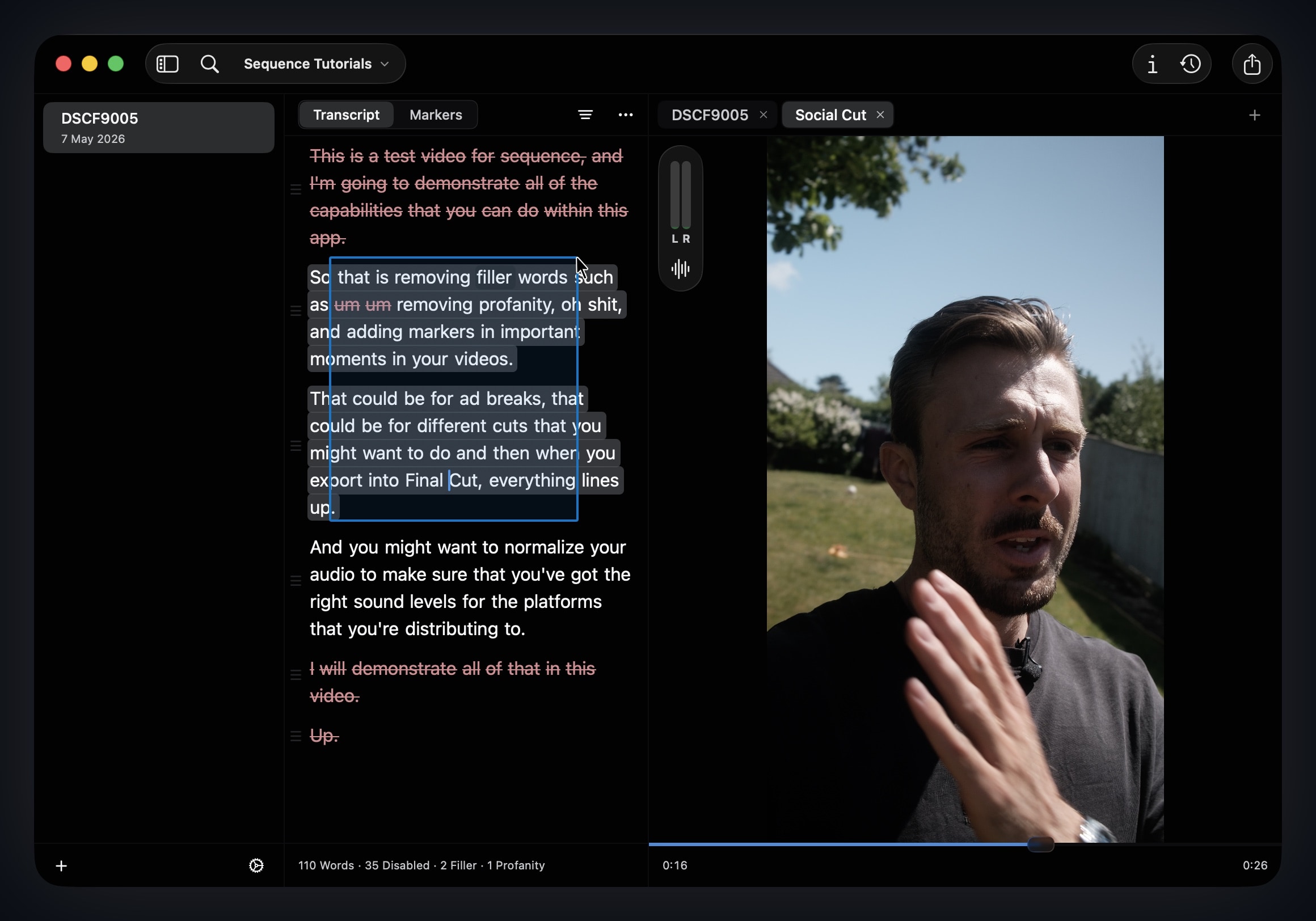
Create variants for the full episode, a family-friendly edition, or short clips. Each version can have its own transcript edits, markers, audio, and framing without duplicating the source recording.
Filler-word and silence controls help with the repetitive cleanup pass. Review their suggestions rather than treating every pause or “um” as a mistake; natural speech still needs rhythm.
Create a Clean Version
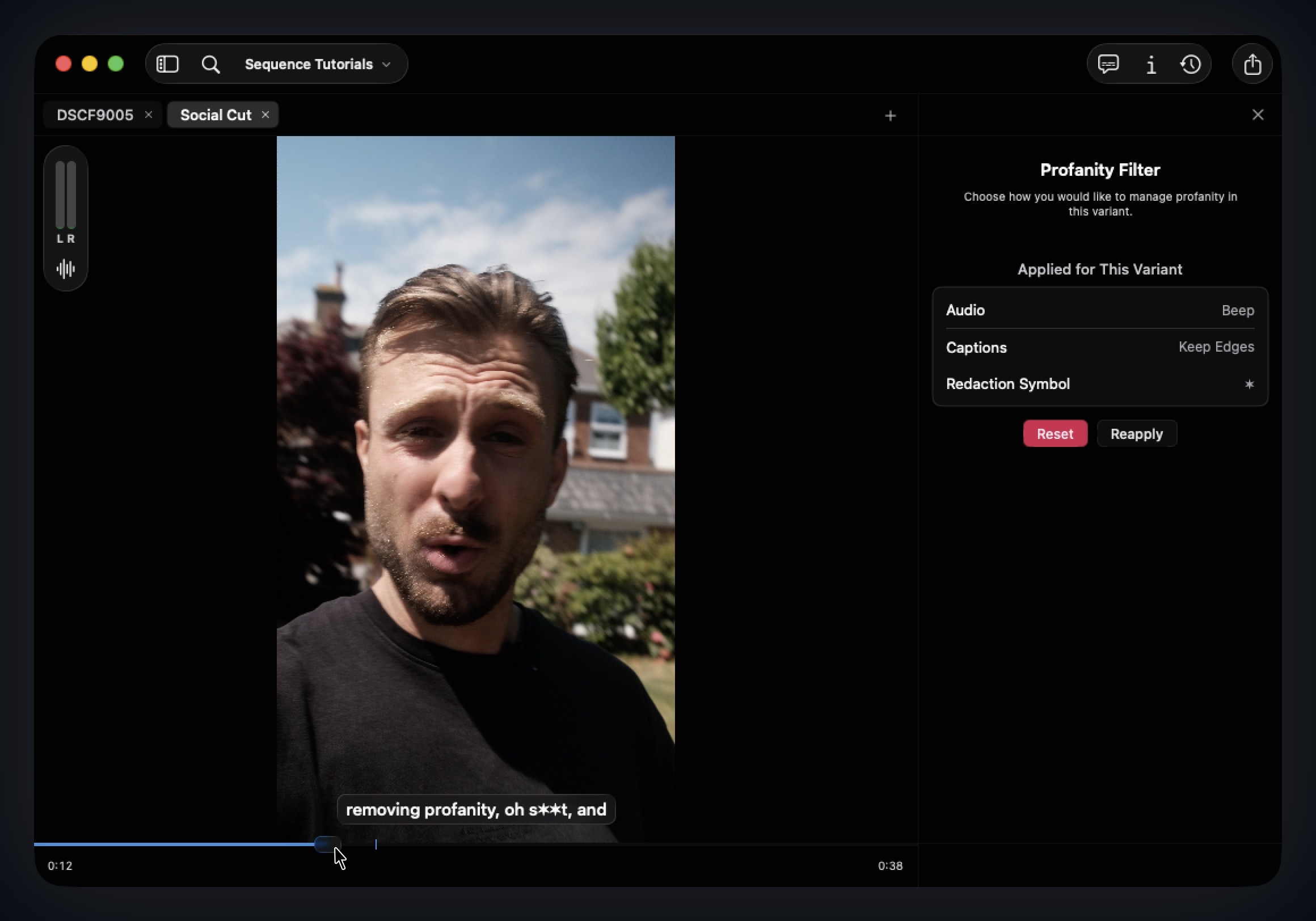
Sequence includes an editable profanity list. Choose whether flagged words should be skipped, silenced, or beeped, and set a separate redaction style for captions. The app makes the pass faster; you remain responsible for checking that the treatment fits the audience and brief.
If asterisks do not fit the brand, choose another replacement character or symbol.
Mark Sponsorships and Key Moments
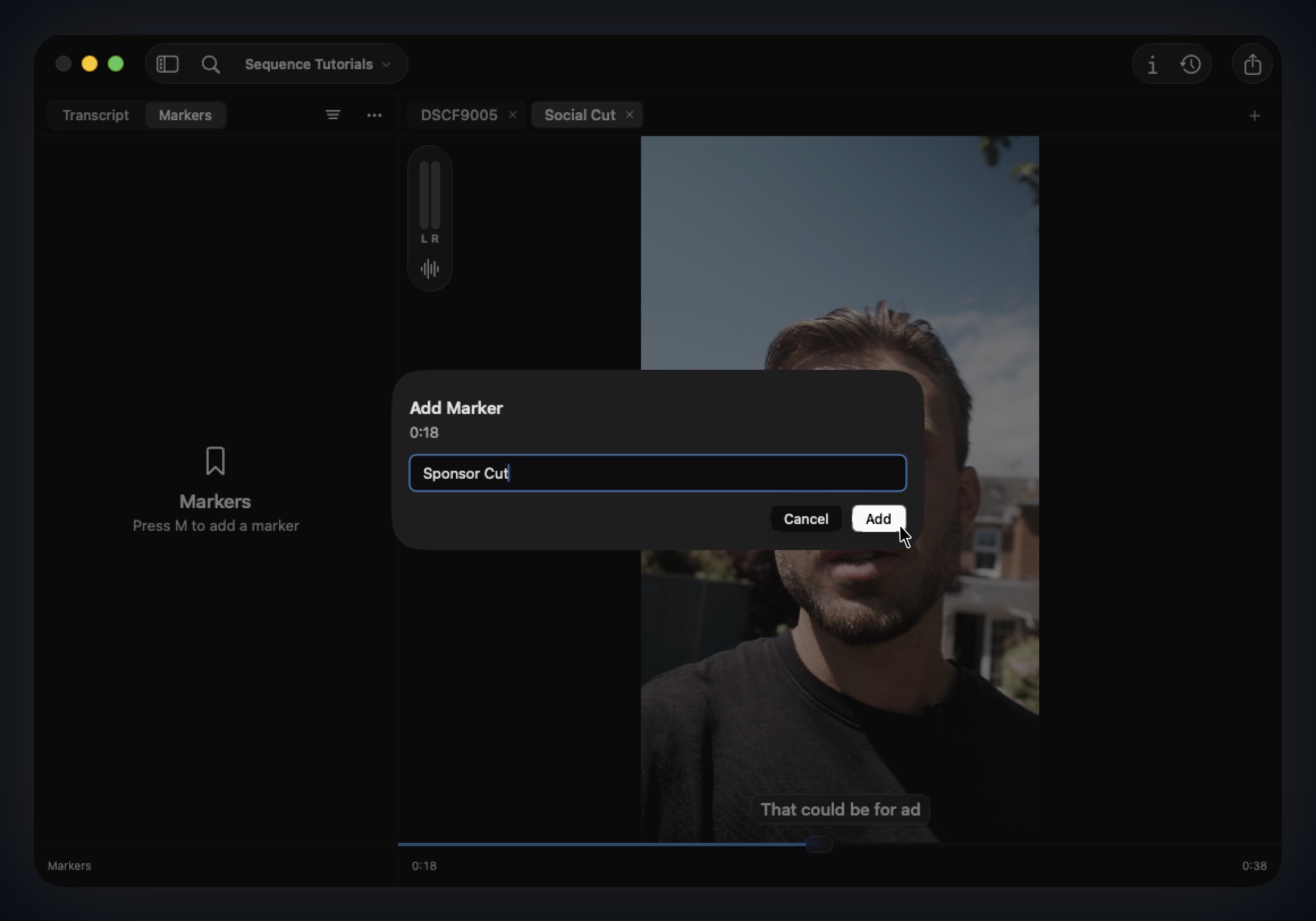
Use Find within Transcript to locate the planned break, then press M to add a marker for an advert, chapter, quote, or follow-up. Markers carry into the Final Cut Pro and DaVinci Resolve handoff.
Export the Rough Cut, Then Add the Polish
Sequence can also prepare loudness, organize projects into Catalogs, and export caption, subtitle, and transcript sidecars. Read the loudness guide for a closer look at audio normalization.
Export a finished video or audio file when the cut is ready. If it needs branding, music, graphics, colour, or a detailed mix, continue in Final Cut Pro or DaVinci Resolve.
In our workflow comparison, this kind of transcript-led first pass reached a rough cut up to five times faster than manually listening, scrubbing, and slicing. The exact saving depends on the recording and how much editorial judgement the episode needs.
Download Sequence to try the complete workflow for seven days.

James Seddon, Founder