Getting Started
Transcribe, Edit, and Clean Up
Transcription
- Import your media and download the transcription model.
- Open the variant or programme you want to work on.
- Choose Transcribe in the empty transcript pane. Progress appears there and in Action Center; you can cancel a queued or running job.
Sequence processes the media locally rather than uploading the recording to a cloud transcription service. If the source is missing or incompatible, follow the relink or conversion prompt before trying again.
Variants of an ordinary source share its original transcript. A Multi-Cam folder shares a transcript across its cameras and programmes. Each variant or programme keeps its own editorial decisions, so you do not need to transcribe the same source again for every cut. Where Copy from another tab is offered, it transfers that tab’s edited transcript state rather than running speech recognition again.
Speaker labels are optional. See Detect and Manage Speakers for the separate model, automatic detection after transcription, and manual detection on an existing transcript.
If Sequence finds no speech, you can try Transcribe Again, or choose Mark as No Words when the recording intentionally has no spoken content.
For recordings with multiple audio tracks, review Metadata → Audio and the saved track choices before transcribing. You can transcribe one stream, a selected mix, or isolated tracks. Changing the audio selection after transcription does not automatically rewrite existing words. See Metadata and recording setup.
Mark as No Words hides the Transcript tab for that project. Clips and Markers remain available for editing material without speech.
Understand the workflow
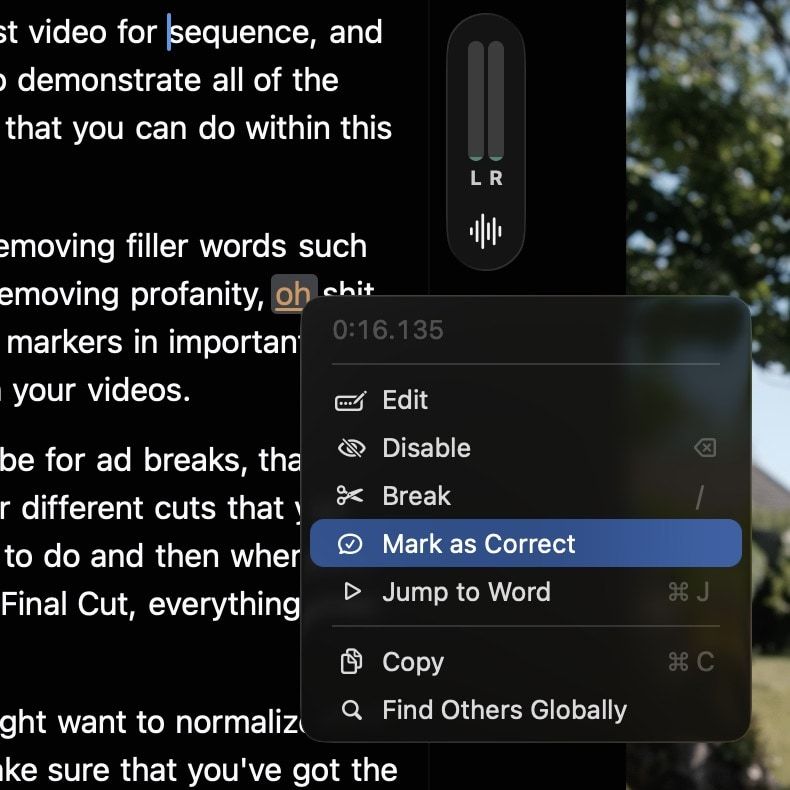
Edit
If a word is wrong, right-click it and choose Edit. Sequence opens the word inline so you can correct it without leaving the playback view. Editing the text does not replace or alter the source audio.
Mark as Correct
Words marked with low-confidence underlining may need review. If a word is correct, right-click and choose Mark as Correct to clear the warning. If it is wrong, choose Edit and type the correction.
Disable / Enable
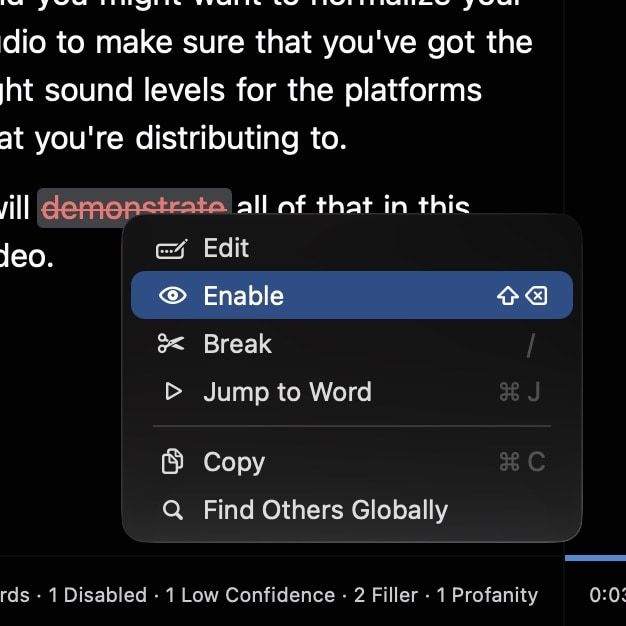
Disable excludes the selected words from playback and output without changing the source file. Restore a selection with Enable, or use Enable Disabled Words in the transcript options menu to restore all manually disabled words.
Break Sentence
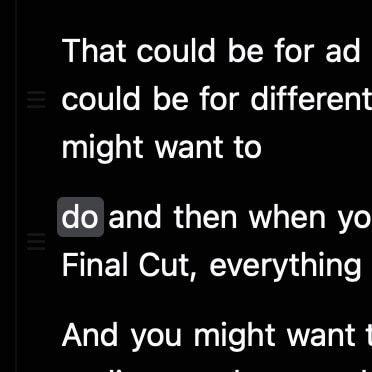
Break Sentence splits a sentence group at the selected word. Use it when the transcript has grouped too much text together and you need a clearer unit for review, captions, or export. The default shortcut is /.
Move Sentence Up or Down
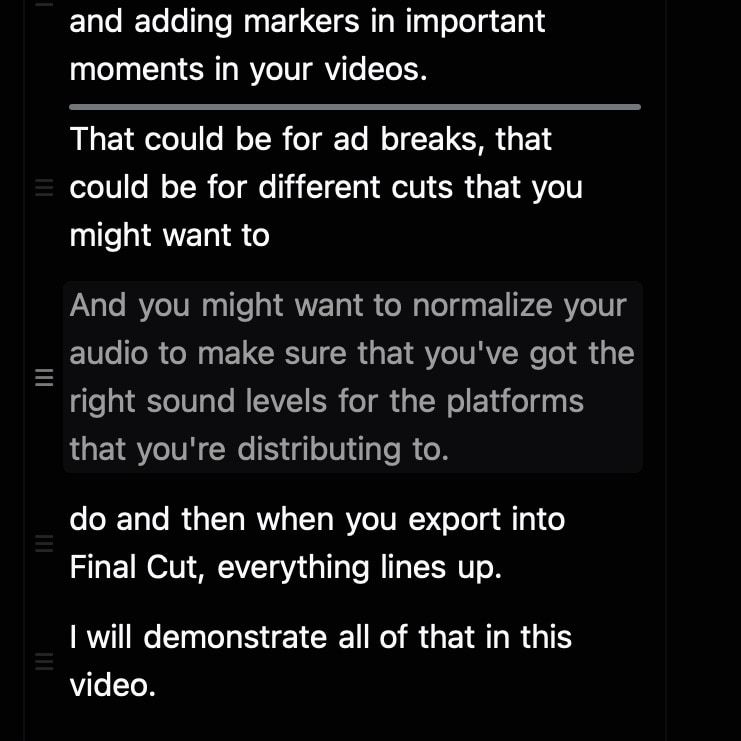
Move Sentence Up and Move Sentence Down reorder sentence groups in the transcript. Use them to shape the rough cut while keeping the source media untouched.
Group Sentences
When you select words across multiple movable sentence groups, Group Sentences combines those sentences into one group. Use it when a sentence split too aggressively or when two short transcript rows should behave as one unit for editing and reordering.
Jump to Word
Right-click a word and choose Jump to Word (⌘J) to move the playhead to its timestamp.
Copy
Copy places the selected transcript text on the clipboard. Use Copy Full Transcription in the transcript options menu for the complete visible transcript. Disabled words are omitted and the active profanity redaction is respected.
Find Others
Find Others searches for the selected word elsewhere in the transcript. Use it to review a repeated name, technical term, or transcription mistake.
For recurring spelling corrections, open Settings → Transcription → Vocabulary Replacements, enter the phrase and preferred replacement, and add the rule. Enable the rules you need. Use Update Existing Transcripts to apply them to saved transcripts; review the result message for any failures.
Select and act on transcript text
Click and drag across words to make a selection, or drag through the empty area around transcript rows to marquee-select several sentences. The floating selection bar keeps the most useful actions close to the selection, including jumping to its start, copying text, enabling or disabling words, and creating a variant from the selected material.
For a multi-word selection, Jump to Start of Selection seeks to the first playable word. A selection that begins with removed silence or other non-playable timeline content cannot be used as a jump target.
Adjust transcript text size
Use Transcript → Bigger Text (⌘+), Smaller Text (⌘-), or Actual Size (⌘0) to change only the transcript’s type size. Sequence remembers the choice and preserves the visible position, selection, and inline-editing focus while the layout changes. Transcript rendering also respects the macOS Bold Text accessibility setting.
Create a variant from a selection
Select transcript material and choose the variant action to create a new version based on that selection. This is useful for pulling an excerpt, answer, or short clip out of a longer recording while retaining its relationship to the source project.
Work in Clips
Switch the transcript pane to Clips to review the edit as source passages rather than individual words. A clip is part of the current variant, not a new movie file.
- Select words and choose Create Clip from their context menu to define a clip around the passage. Use Add to Clip where offered to include a selection in the current clip.
- In Clips, select rows with click, Command-click, or Shift-click. Right-click for Jump to Clip, Create Variant, Enable, or Disable.
- Drag eligible clip rows to reorder them. Locked clips cannot be moved; unlock them first.
- Combine Clips joins eligible neighbouring groups. It is offered for adjacent, enabled, source-contiguous clips, not as a way to restore removed speech or silence across a hard cut.
- Use Add Keyword to label a clip. Existing keyword controls let you edit or delete the label. The Metadata → Keywords inspector summarizes keywords for the edit.
- Use Lock Clip to protect a clip from editorial changes and Unlock Clip before revising it.
Clips keeps at least one clip enabled, so Disable is not offered for a selection that would remove the entire edit. Locked clips expose their unlock action rather than the usual editing menu. A Trimmed Start or Trimmed End row represents an excluded source boundary, not an ordinary clip with keyword and composition actions.
In a Multi-Cam programme, the clip context menu also offers Visual Composition. See Multi-Cam Editing.
For material without words, use markers to define a source passage and choose Create Clip or Create Variant from the marker selection. See markers and watch position.
Cleanup
The transcript options menu opens cleanup controls for the active variant or programme. Filler-word and profanity matches use your configured word lists; silence uses the chosen detection settings. Review the result in playback before export.
Filler Words
Filler Words finds configured hesitation terms and can hide them from the transcript and edit. Review the result so useful rhythm and meaning are not removed with the filler.
The inspector lets you choose whether this variant should hide filler words or show all words. If you leave it using the app default, Sequence follows the global filler word setting; if you customize it, the variant stores its own override. If you later change your mind, reset clears the variant override and Re-Apply runs the current filler list against any visible leftover matches.
Profanity
Profanity opens the cleanup inspector for words in your profanity list. Use the app defaults or customize the handling for the active variant, so one version can be stricter while another stays closer to the original media.
For playback and export, Sequence supports Skip, Silence, Beep, and Text Only. Skip removes the word from the edit, Silence mutes that range, Beep adds a generated censor tone, and Text Only leaves the audio unchanged while redacting transcript and caption text.
When a word is redacted in text, choose whether to keep its edges, interleave replacement symbols, or mask it completely. You can also choose a custom symbol.
Manage the profanity word list in Settings. Reset clears the variant’s saved playback and caption-redaction choices. Re-Apply processes visible matches using the current list and settings.
Remove Silence
Remove Silence finds gaps between transcript words at or above the chosen duration threshold and removes them from the active edit. It does not require digitally silent audio: review playback before applying it, especially around deliberate pauses or background sound. Use Restore Silence to bring a removed pause back.
Enable Disabled Words
Enable Disabled Words brings back words you manually disabled. It does not mean every filter is permanently removed; filler, profanity, and silence have their own controls and reset options. Think of it as the undo path for manual hide decisions you made from the context menu.
Find Within Transcript
Find Within Transcript searches the current transcript. Use it to locate a word or phrase in a long recording without scrolling through the whole project.
The filter menu highlights enabled or disabled words, filler words, profanity, low-confidence words, silence, or detected speakers when those categories are available. Choosing a filter is a review aid, not an instruction to remove the matches from playback.
To search across projects rather than within this transcript, use the workspace's Search button or ⌘F. See Search your library.
Delete Transcript
Delete Transcript removes the shared transcript for the source or Multi-Cam folder. This affects other variants, cameras, and programmes that use it, and cannot be undone. It does not delete media files or projects. Use Reset Transcript to Original instead when you want to discard transcript edits without deleting the shared transcript.